
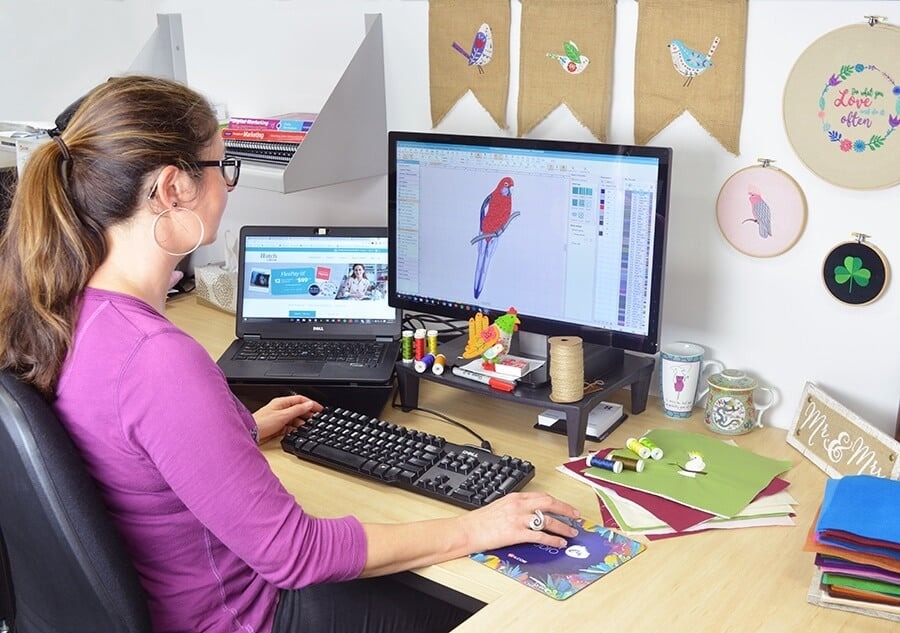
Brother embroidery machines like the Innov-is series or Persona deliver incredible detail and speed, turning fabric into personalized masterpieces. The catch? They need files in PES format to run at their best, preserving colors, stitch types, and sequencing perfectly. You spot a great JPG—maybe a logo, illustration, or photo—and envision it stitched on shirts or quilts. Quick online converters tempt with promises, but they often spit out files with broken stitches, wrong colors, or puckered results. Real conversion involves digitizing that translates pixels thoughtfully into thread. Done right, your Brother produces crisp, vibrant embroidery every time. Smart steps make the difference when you convert JPG to PES for embroidery machines.
Start with Strong Source Artwork
Quality in equals quality out. Low-resolution JPGs create jagged edges that show in stitches. Aim for images at least 1000 pixels wide with bold contrast and clear shapes. Vector versions scale perfectly, but raster JPGs work if cleaned properly. Avoid compressed web grabs that lose detail when enlarged. High-contrast logos or simple illustrations translate best—photos need extra simplification to avoid muddled shading.
Clean and Simplify the Image First
Open your JPG in free editors to prep. Crop tightly around the design, removing excess space that inflates stitch counts. Boost contrast so edges pop and colors separate cleanly. Reduce palette to eight or ten shades—thread can’t match every pixel nuance. Posterize or apply cutout filters to block areas boldly. Erase backgrounds for transparency. Thicken thin lines slightly to prevent thread breaks. This groundwork guides digitizing software accurately, reducing random stitches later.
Choose Software That Handles PES Well
Several programs export reliable PES files. Hatch Digitizer offers powerful auto-tracing with manual refinement. Embrilliance StitchArtist provides affordable levels that grow with skills. PE-Design from Brother integrates seamlessly for native feel. Wilcom suites deliver pro results with strong PES support. Free trials like SewArt handle basics effectively. Import prepped images and let auto-features draft initial objects while you tweak.
Digitize with Stitch Types in Mind
Auto-digitizing creates fills and satins quickly, but review carefully. Swap running stitches on wide areas to glossy satin columns—Brother machines make them shine. Use tatami fills for coverage with texture. Add underlay everywhere to anchor on knits and prevent sinking. Dial density lower for soft feel—around 0.40mm on cotton, easing for towels. Pull compensation keeps shapes true after tension. For logos, manual bezier tracing ensures perfect curves.
Match Colors to Real Threads
Screen shades mislead. Reference Robison-Anton or Madeira charts inside software to pick closest matches. Strategic reduction preserves depth while keeping changes reasonable. PES embeds color info, displaying thread names on Brother screens for easy swaps. Test blends for smooth transitions in shaded areas.
Optimize Pathing for Smooth Runs
Needle travel affects efficiency. Group same-color sections to minimize jumps and trims. Sequence logically—underlay first, fills next, outlines last. Clean paths cut run time and thread waste significantly. Brother’s fast motors reward optimized files with fewer interruptions.
Test on Actual Fabric
Previews help, but fabric tells truth. Stitch samples on materials matching your project. Check registration, color vibrancy, and detail clarity. Note puckering or gaps, then adjust density or compensation. Multiple tests refine until everything performs perfectly.
Export PES Correctly
Save at the highest version your machine supports—newer Brothers handle v10 or v11 for precise data. Keep editable masters for resizing or recoloring later. Transfer via USB or wireless, confirming load on screen.
Handle Common Challenges
Small text needs widened columns for readability. Metallic threads require slower speeds and looser tension—note in files. Stretchy fabrics demand extra underlay. Photos simplify to four-six colors with contour fills for realism.
Final Thoughts
Converting JPGs to PES unlocks your Brother machine’s full potential for logos, customs, and photos. Thoughtful preparation, smart digitizing, and real testing create embroidery that’s crisp, colorful, and durable. Skip shortcuts that disappoint—embrace the process for results that impress clients or delight recipients. Your next design waits to stitch beautifully—one optimized file at a time.
Table of Contents